Multicompany options
Running GCON4 MFL04 Server process using multi-company function
It is possible to perform multi-company operations using the standard functionality of the Unit4 Server Processes
The Server process MFL04 allows you to fulfil the upload of data using that feature. In the following example you will see how we can upload a template of Accounts into two companies (EN and NT)
Steps:
Step 1.
Once MFL ACT is installed, proceed to create the MFL04 server process menu entry in Desktop
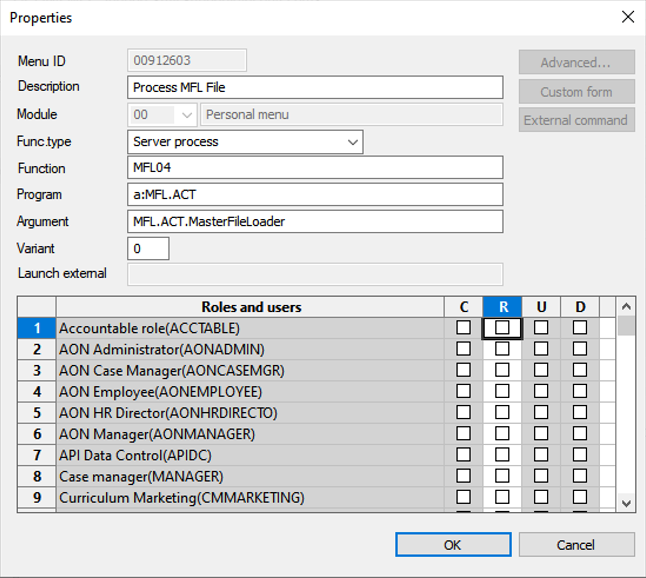
Grant access to the relevant roles and users.
Step 2.
Set the parameters to identify the MFL template and the report to be generated.
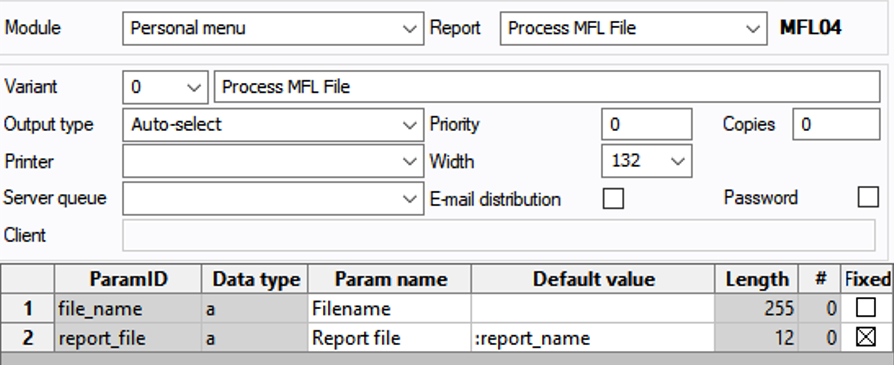
Step 3.
Our file is the Account template. Please insert the file name including its extension in the field Filename
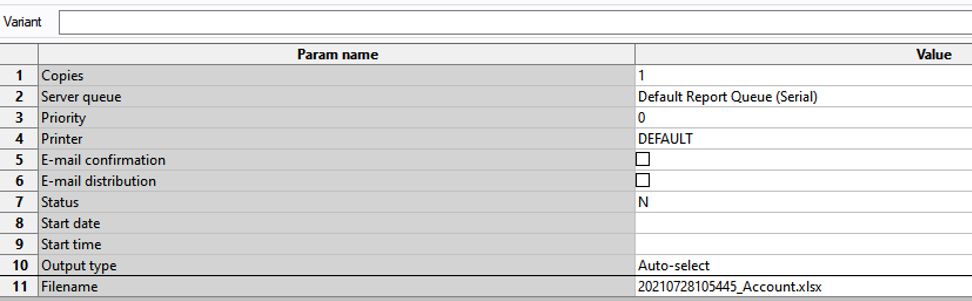
Step 4.
Then, go to Tools -> Company -> Multicompany and choose the clients you need to populate the data, based on the Relation and relational values they have in common, keep values.
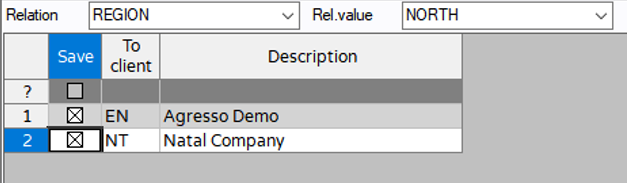
*Note: both clients must have the same setup to avoid validation errors in relations, attribute values, etc.
Step 5.
Save the process and go to the maintenance of ordered reports in the relevant companies
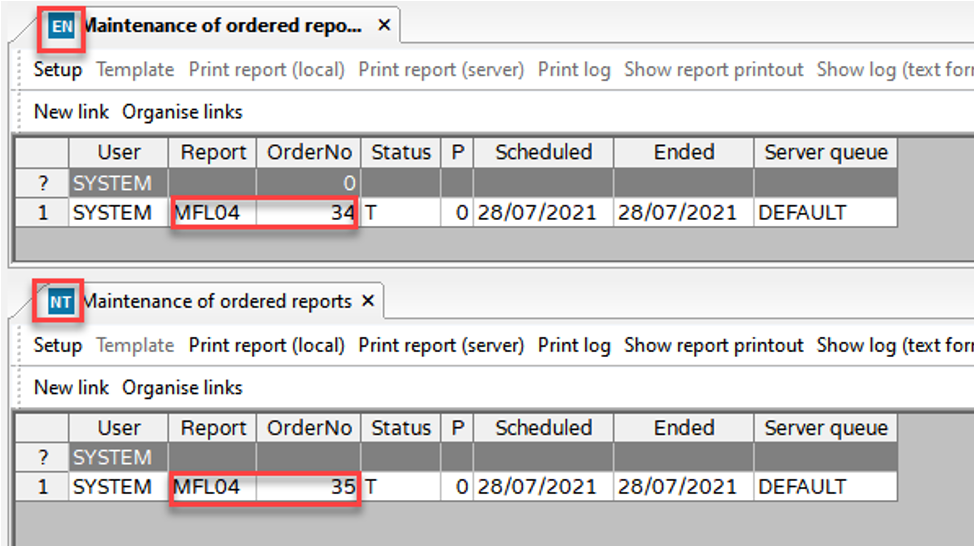
Step 6.
The log information is shown per each company:
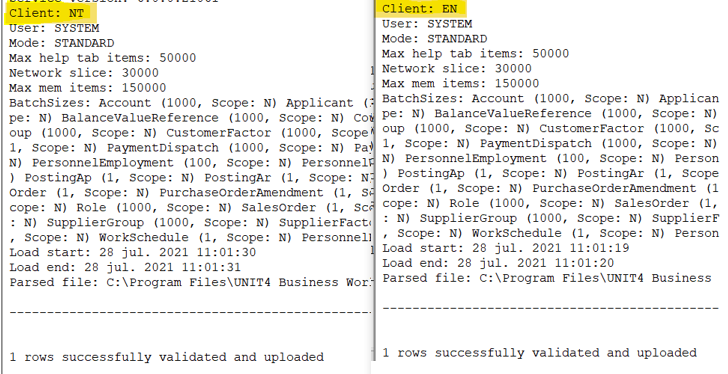
Step 7.
Check the results in Unit4 ERP
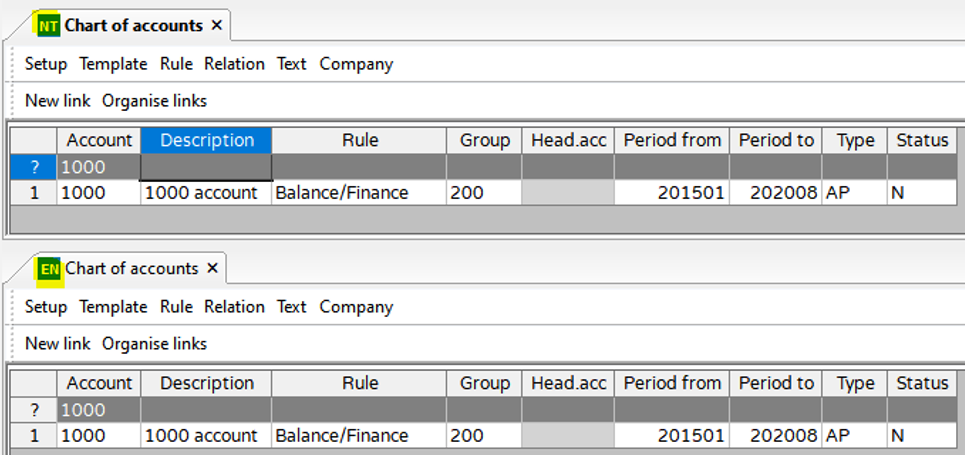
Company Links compatibility
In previous versions of GCON4 MFL it was not possible to use the tool when we have set up a new company, (example company 10) and wish to connect this company to the supplier and customer Masterfile shared with another company (EN).
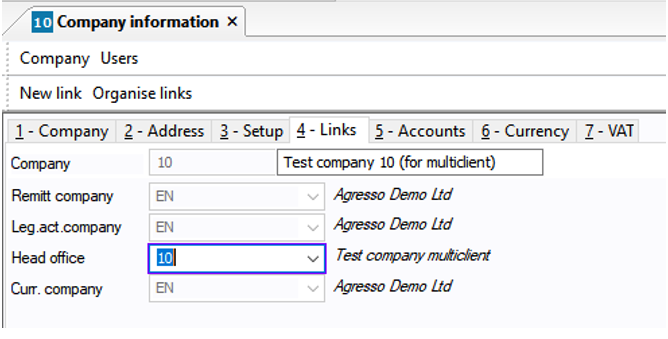
The following dialog box was shown when extracting a Suppliers template or when loading the file:
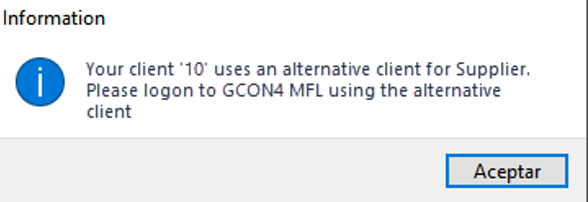
We can upload and maintain SUPPLIERS and CUSTOMERS from the Head Office.
For Suppliers, we can retrieve from the client 10 the supplier groups shared with client EN, any modification saved on 10 will also apply for EN and vice versa.
*Note: Relations are maintained per client, in this case the relations must be entered directly in the Remitt and Leg.act.company.
When uploading Personnel information to company 10 we also faced the error that SUPPGRP was not available due to the link to company EN. This issue is now solved.