Generating CSV templates
GCON4 MFL can load data from a .CSV file. CSV stands for "comma-separated values". Its data fields are most often separated, or delimited, by a comma. In GCON4 MFL, comma is the character required to separate fields in templates that want to be uploaded.
To generate this file type, a function has been added to generate templates based on the field selection. The process for selecting the fields is identical to that used to generate Excel templates.
When you click Generate, a window will appear in which you can define the type of CSV template you want to generate for updating data in Unit4 ERP.
Select the type of master file for which you want to generate the CSV template, for example, if you want to generate a CSV template for uploading data to the Supplier master file, select Supplier in the Master file field, as highlighted below:

GCON4 MFL will display as many tabs as required for the master file selected (remember, each flexi-field group will be displayed as a tab in GCON4 MFL).
The CSV template will be generated only with the checked fields. When you have checked all the fields required in all the tabs, click CSV template example (GREEN) to generate the CSV template.

After clicking on CSV Template option, GCON4 MFL will ask you where you want to save it. A .zip file containing all the csv files will be generated:


For each tab checked, GCON4 MFL will create a separate CSV file:


The CSV template generated is like that shown below, the Unit4 ERP field are highlighted in blue:
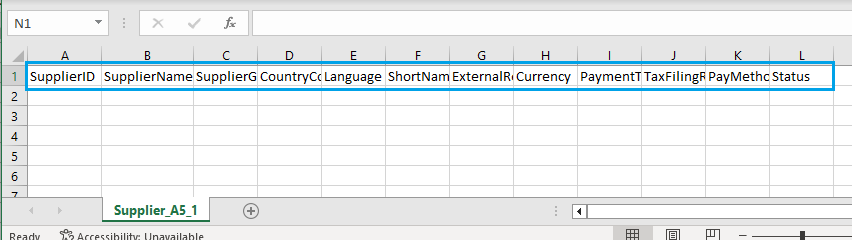
Remember that CSV fields required the comma separation. Below you can find an example:

Note: The naming of CSV files must not contain more than 2 underscore (including the included in the original name), except for files corresponding to flexi-fields. It is mandatory to maintain the original name to avoid compatibility errors when loading the files.
Example:
Personnel_CO_010325
Personnel_Address_010325
Personnel_Supplier_010325
Personnel_APP_TQ_INFO_010325
