Batch transactions
Posting transactions
GCON4 MFL provides functionality to upload GL, AP, and AR transactions using the GL07 server process in Unit4 ERP.
How to use this feature
To post transactions using GCON4 MFL, follow these steps:
- Create a GL07 variant.
- Generate an Excel template with GCON4 MFL and
- Complete the template with the required transactional data.
- Upload the file using the previously created GL07 variant. The data is stored in acrbatchinput, then processed by the GL07 variant you selected.
Creating a GL07 variant is optional, but highly recommended for better control and configuration.
Validation Levels
When posting transactions, GCON4 MFL performs two levels of validation:
Level 1 - Pre-validation (MFL)
Before sending the data to Unit4 ERP, GCON4 MFL checks for common issues such as:
- Fixed values in account rules
- Unbalanced amounts
- Incorrect periods
- Missing or invalid data such as variant id, invoice number, attributes and attribute values, tax codes, etc.
If any issues are found, the process stops and a clear error log is generated, making it easy to identify and correct the problems before proceeding.
Level 2 - ERP Validation (GL07)
Once Level 1 validation is successfully completed, the data that is stored in acrbatchinput is picked by the GL07 process, where standard ERP validations are applied.
Please refer to the section below for a detailed explanation of the Skip Account Rule Validation option.
Getting started
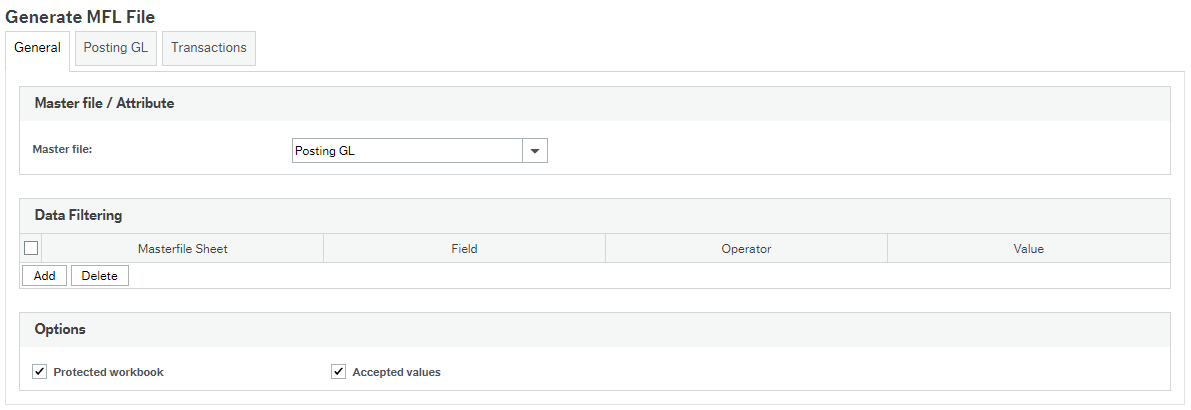
After creating the GL07 variant, log into GCON4 MFL and select the appropriate master file type (e.g., Posting GL) to begin the process.
Select Posting GL from the dropdown list.
Explanation of fields
Posting GL tab: This tab contains all fields related to the GL07 variant.
Transactions tab: This tab includes all fields related to the transaction data.
In the Excel template, there is a field called Sequence No. This field represents a sequential number and is independent of the voucher number.
The Excel template is generated only with the fields you select. Once you have selected all required fields in both tabs, click Generate.
GCON4 MFL will then create an Excel file containing both tabs.
Important
The Posting GL tab includes the Variant field, where you must enter the ID of the GL07 variant created in Unit4 Business World. This is required to upload GL transactions into Unit4 ERP.
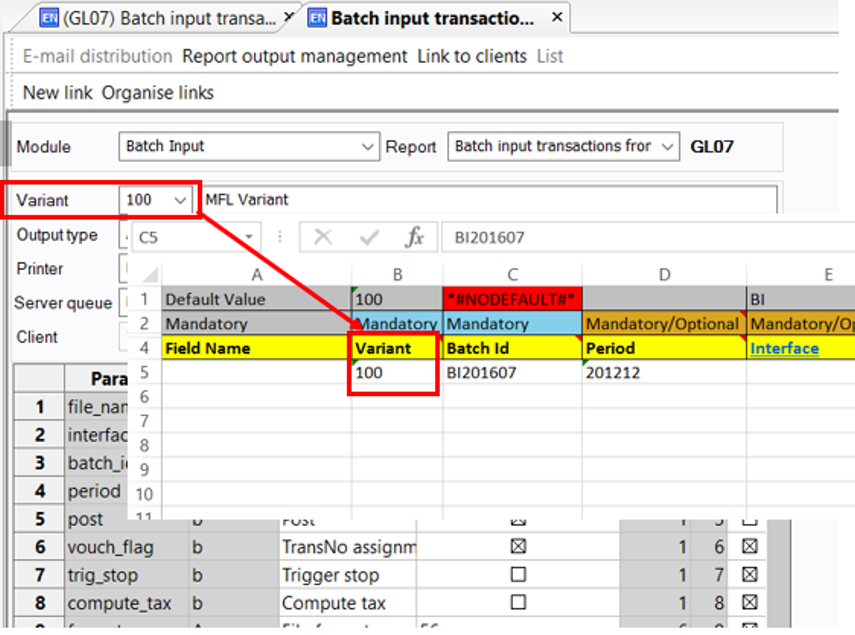
Values entered in the Posting sheet will override the values defined in the variant.
Once all required information has been completed in the Excel sheet, go to the Load template window to start the process.
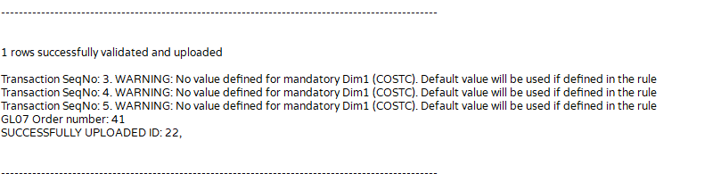
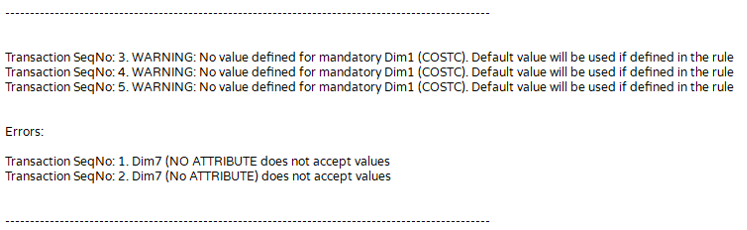
During the upload, the two validation levels previously described will be executed. GCON4 MFL will return messages based on the outcome of these validations.
For example, in the case of warnings:
Or ERRORS:
Note: GCON4 MFL follows the standard GL07 behavior for the Order ID field.
If this field is populated, the value will be stored in the Unit4 ERP transaction tables; however, it will not be linked to the corresponding order.
Skip Account Rule validation
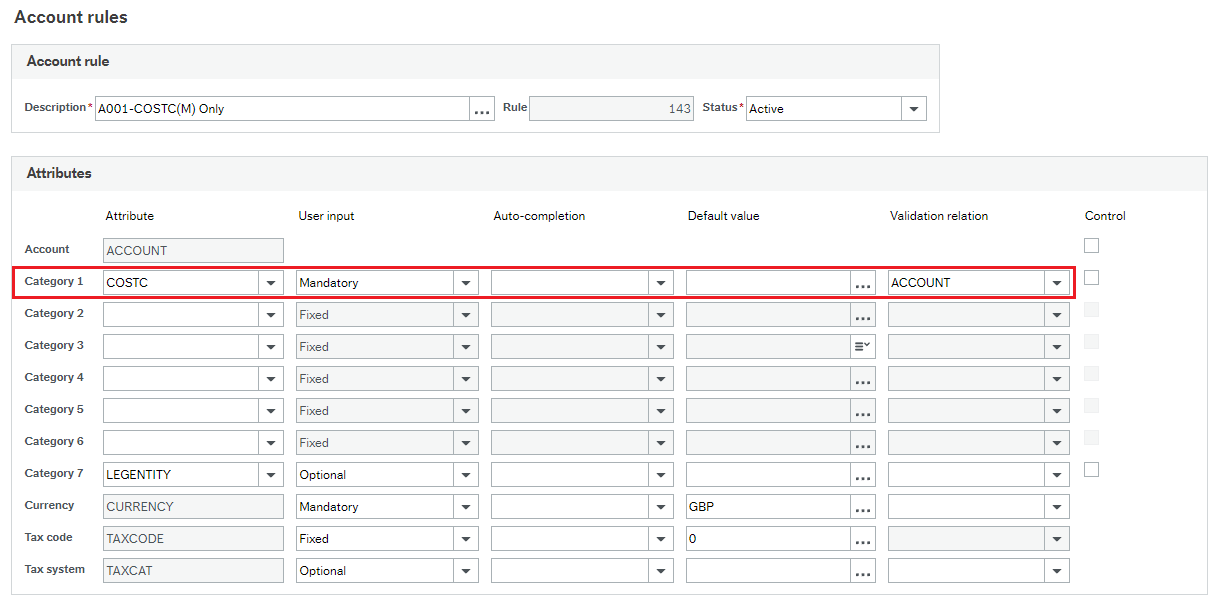
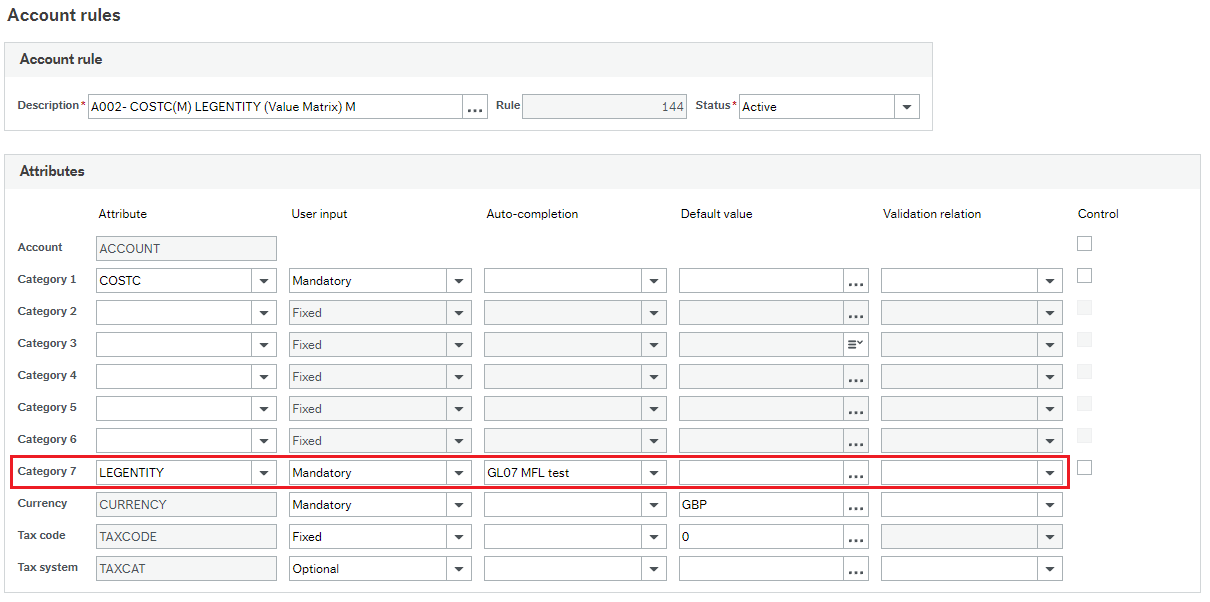
This option was introduced to prevent critical errors during the upload process when the following configurations are defined in Unit4 ERP:
- Validation on relations within the Account Rule
- Value Matrix
Example:
Accounts

Account rule setup
Posting GL Template

We are specifying the expected results in MFL according to our current setup.
Enable the Skip Account Rule and Skip Attribute Validation parameters in the Settings window.
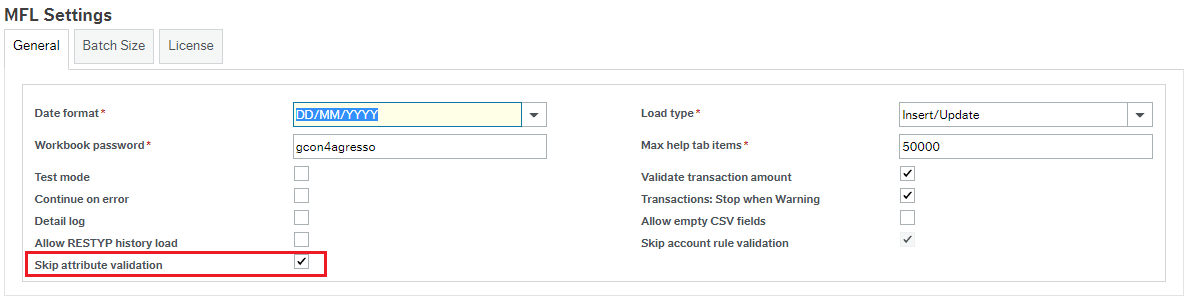
The Skip Account Rule Validation option allows the GL07 process to perform the necessary validations, as MFL does not support certain configuration scenarios, such as those described above.
Once the file is loaded, the result is as follows:

How does MFL process transactions when the accounting period is closed?
When the accounting period is closed, MFL follows the standard validation rules of Unit4 ERP (GL07 process).
If a transaction is posted to a closed period, the system will not process it. The GL07 log will display an error message such as "Illegal period 2026"**.
The transaction must be posted in an open period, either by:
- Adjusting the period in the template, or
- Reopening the period in Unit4 ERP (if allowed by business rules).
MFL does not override or bypass period controls; all validations are enforced by the ERP during the posting process.
Additionally, during the Level 1 validation, if the accounting period is closed, MFL will stop the loading process, preventing the data from being inserted into the acrbatchinput table.
You can also identify this during the template validation stage, where closed periods are highlighted in red, indicating that they are not valid.