Introduction
This Installation Guide provides important information regarding the installation of GCON4 MFL. It outlines the steps required to install the product automatically. For detailed information on new features and bug fixes, please refer to the Release Notes.
Before installing GCON4 MFL version 7.0.x, ensure that the following software is installed:
- Unit4 ERP 7.0.0
Note The tool has been adjusted to be compatible only with updates 4 through 17 (released on March 10-2026).
To ensure optimal support and performance of the GCON4 MFL tool, support will be provided only for recently released versions of Unit4 ERP that have been deployed within the corresponding maintenance windows.
This approach ensures that all required updates and patches are applied within the established timelines, minimizing potential issues and maintaining compatibility and stability of the service.
Before starting the installation
Before starting the installation, ensure that the Backoffice Data Source you intend to use is fully configured. This includes:
- Configuring the Business Server.
- Verifying the paths for the
AGRESSO_EXE,AGRESSO_REPORT, andAGRESSO_STYLESHEETenvironment variables are correctly set. - Ensuring that all Data Sources are properly configured.
- If you are migrating from previous GCON4 MFL versions such as 5.x.x or 6.0.x, please contact our Customer Support Team for guidance throughout the process.
ACT Components
The MFL.ACT.dll is located in the following folders
7.0.0.X. Compatible with ERP 7 Updates 13 - 17
7.0.0.12 Compatible with ERP 7 Update 12
7.0.0.5. Compatible with ERP 7 Updates 4 - 11
Prerequisites
PowerShell Version
You have to use the PowerShell Version 3 or higher.
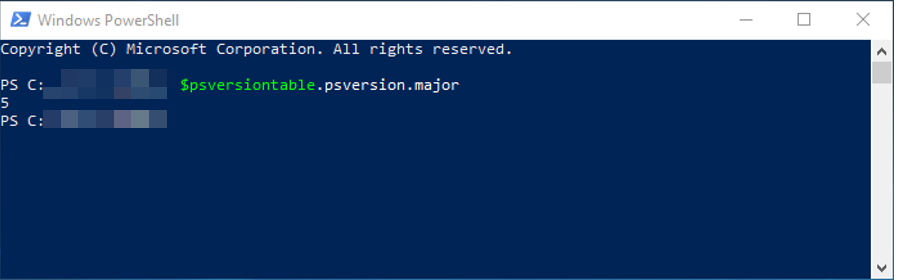
User Access Rights
Log in to the PowerShell console as an administrator.
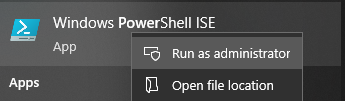
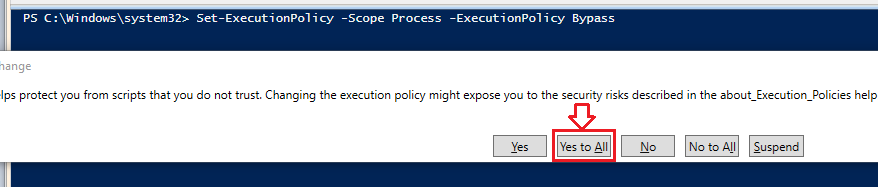
If you receive the following error message: File cannot be loaded because running scripts is disabled on this system
type: set-executionpolicy remotesigned
select Yes to all and press the Enter key.
Installation
Go to MFL website and download the Installation package.
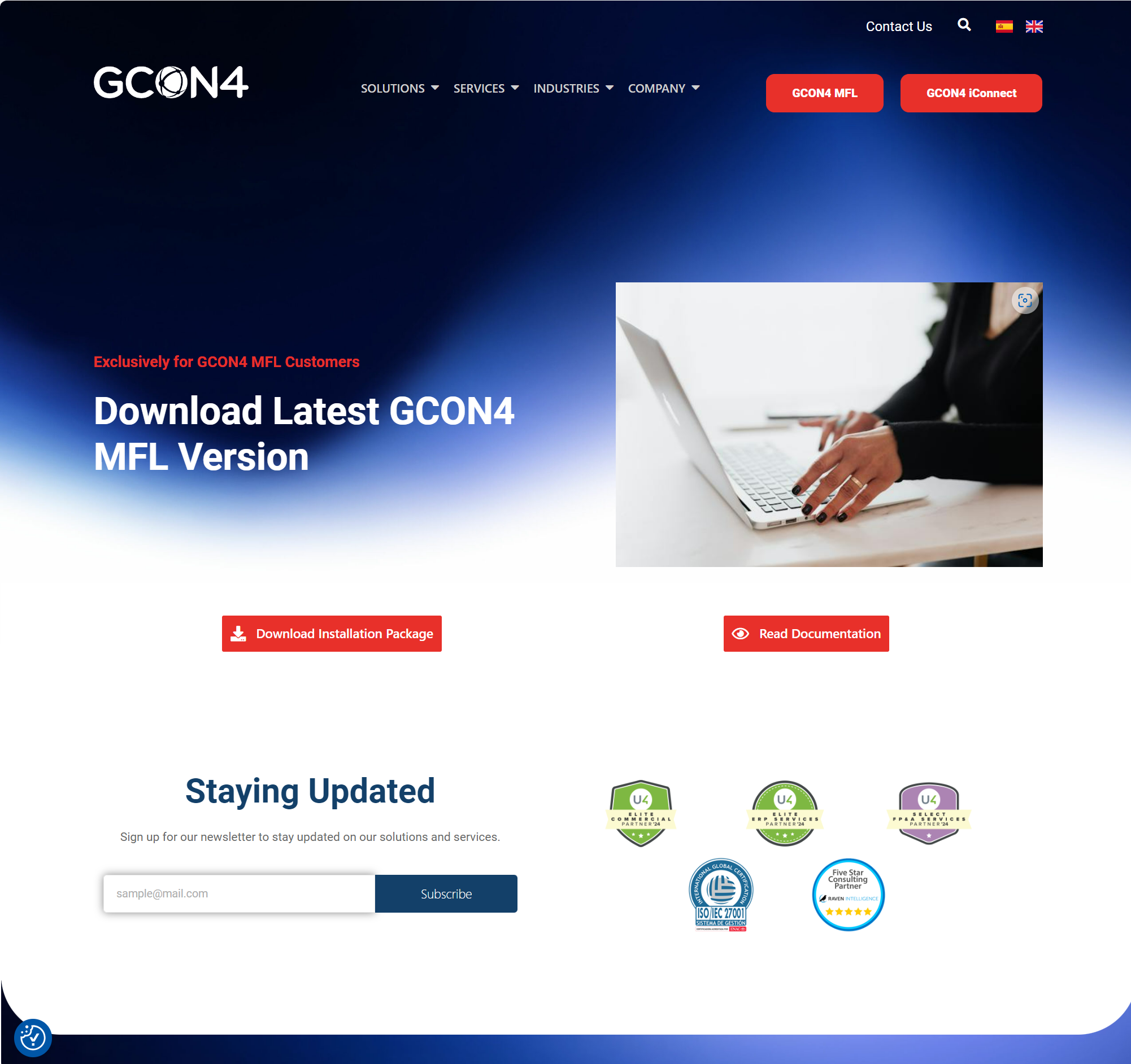
These 2 buttons allow to download the latest Zip package and open the documentation's webpage .

File Layout
Unzip the downloaded file, inside the folder you will find the installation package which contains the folder for install and uninstall.
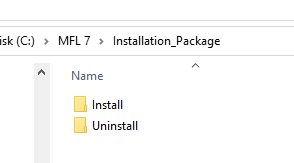
Powershell Script
Enter at the Install folder where you will find the powershell script needed to run InstallMFL.ps1
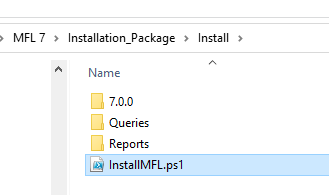
Now you can run the InstallMFL.ps1 script from the folder you unzipped GCON4 MFL with the command:
.\InstallMFL.ps1

While the script is running, it loads the files and executes all the scripts from the directory structure.
The script will ask you to enter the name of the data source.

After this the installation will be executed automatically
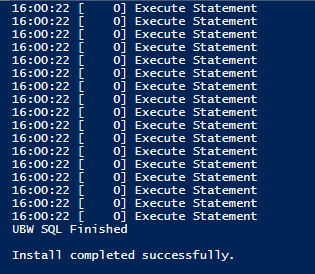
Logging
A log is created in the directory every time when a PowerShell is run:
Example: FullLog-20230506-102153.log
EULA
See the software license terms Software License terms
Menu Access
Don't forget to grant permissions for the GCON4 MFL menu entries in WEB:
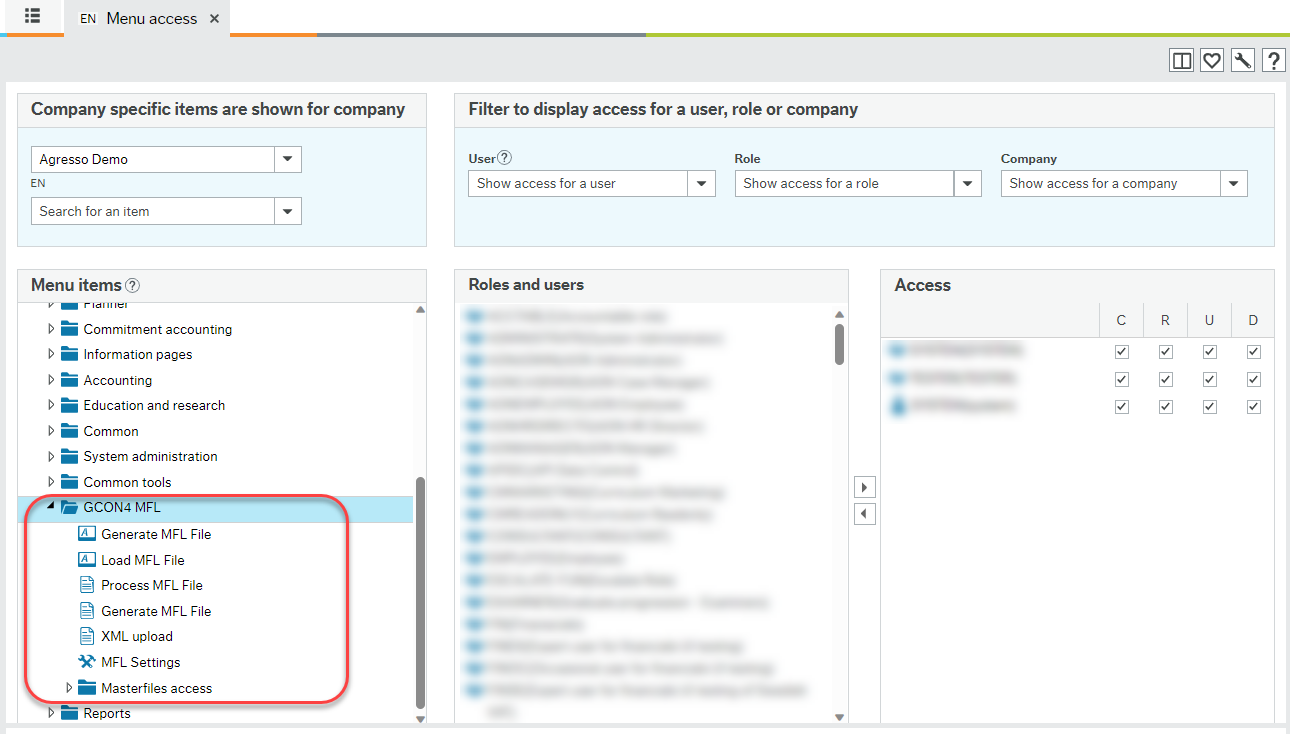
Masterfile access management is described in the section Configuration, from the Reference Manual.
When should I re-install GCON4 MFL?
- Missing MFL menu titles
After applying an update to Unit4 ERP, GCON4 MFL menu titles may be affected. To support multilingual functionality, these titles are stored in ERP tables, which can be impacted during system upgrades. For this reason, it is recommended to reinstall GCON4 MFL after each Unit4 ERP update to restore menu titles correctly.
- Database refresh or database copy
When working with a refreshed database or a copy where GCON4 MFL was not previously installed.
Note for Unit4 Cloud customers
To request the reinstallation of GCON4 MFL, please create a case (CS) in the Unit4 portal community.unit4.com
Steps
To request the re-installation of the GCON4 MFL version 7.0.x in your PREV, ACPT and PROD environments under, please follow these steps:
Open a new CS in the Community4U platform https://community.unit4.com/
Go to Support4U
Select: Request Something → Cloud → Software Updates & Installations → Localization/Add-on Installation
Complete the form with the following information:
- Localization/Add-on name: GCON4 MFL
- Version: Check the latest version in the Release notes
In the Special Requirements field, include the following text:
“Good day, We kindly request your assistance with the reinstallation of GCON4 MFL v.7.0.x.xxxx in the (PREV, TEST, ACPT, or PROD) environment due to [state the reason]. Please assign this request to Cloud engineers experienced in MFL 7.0 installations. Customer contact for notifications: [name and email] Thank you.”